

Back to the Fuschia – Post Processing, Tim Parkin

Here is the first in a series of videos started with Joe’s ‘Post Processing Borders’ where photographers look at some of their own pictures and show how they post processed them. This first picture is one taken on the isle of Eigg and although it’s a little rough and ready (I’m learning how to present these as we go along) I think there are a couple of valuable lessons built in (or at least a couple of interesting questions raised).
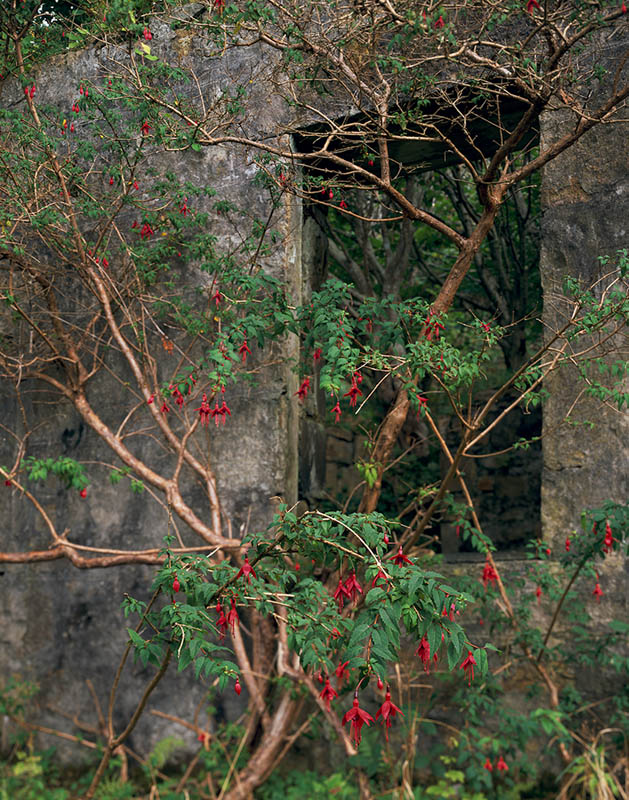
Before Processing
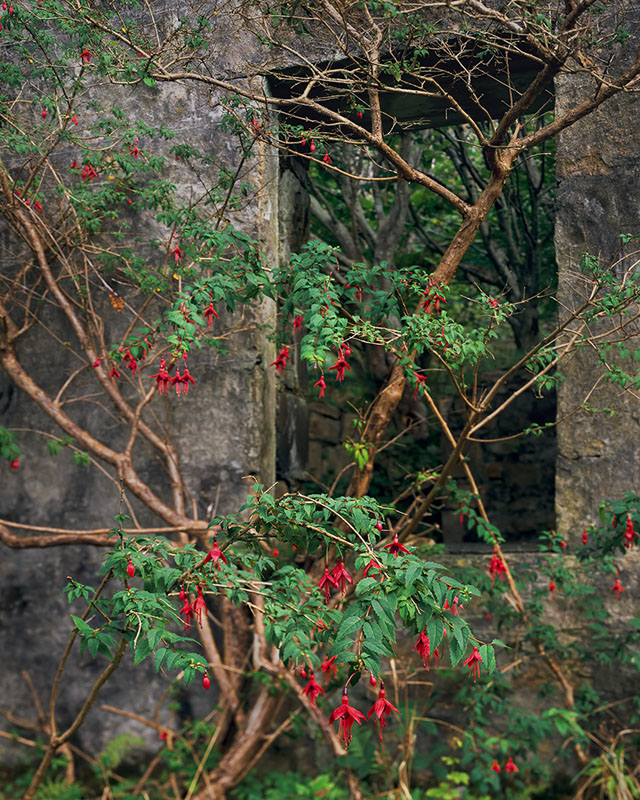
After

This text is available for purchase but you need to login or register first

11 Responses

  1. kevin-allan

    Tim

    Looking forward to watching this video soon … just a note on the web layout though, I find it really hard to compare two images that are above / below each other … a horizontal layout would enable them both to be viewed at once side by side, even if the image size might need to be reduced to accommodate this.

    • Thanks Kevin – I’ve put the pictures side by side – hope this helps..

  2. Once I’d fixed my download problems, I really enjoyed watching that Tim – I feel I learned a few new tricks to try in the future. The post processing videos and tips have been particularly helpful so far, so more of them is fantastic news. :)

    My only concern with the process was with the way you distorted the top corner – not because of the distortion itself, but because of how it seems to have affected the verticals on the window. Maybe it’s just me, but they seem to move away from one another at the top – I can’t say I noticed it when I looked at this photo in the past, though, so it’s a subtle difference that’s really only noticeable seeing the two pictures side by side. I guess I was expecting you to crop and then maybe make a smaller distortion knowing what the final image looked like prior to watching the start of this video.

    Anyway, thanks for the continued hard work on the site and I do really look forward to more of these videos!

    Tim

    • I’ve just dragged the two images into Photoshop and I think the window’s distortion is an illusion more than anything else. There’s a slight curve at the bottom of the left hand edge of the window in both the processed and unprocessed versions, but the vertical lines look very straight and certainly don’t move away from one another in the processed version. I guess I didn’t notice the perceived diverging verticals when I originally looked at the picture well before this video, so seeing the process has probably put that element of doubt in my mind.

  3. jools_b

    Hi Tim,

    Great video – excruciating title for the pic :0)

    A couple of points: I’ve also been playing around with the distorting technique you were using but it’s worth pointing out that you can wind up distorting important detail as a side-effect if you’re not very careful and it’s always worth checking at 100% to make sure everything still looks ok afterwards.

    Secondly, I liked your cloning technique. I’ve never considered doing a ‘rough clone’ first to act as a basis for the final work before. Just wondered if you use the Patch Tool at all? It’s ideal for things like your ‘branch problem’ and saves a lot of time and would work well with your ‘pre-clone clone’ idea, too.

    Looking forward to the next installment. Any chance there’s some colour neg stuff in the pipeline?

    Julian.

    • Yep – I may do a color neg conversion video for the new year issue..

  4. stevefrance

    Great scott!

    Nice… but i would use luminosity masks for these sorts of things. Far better control.
    If you haven’t heard of him, please check out Tony Kyper… provides great actions..

    • Yeah I know it’s laborious but I can get going pretty fast if I’m not demo’ing. I do use lumiosity masks as well (I actually just drag the RGB channel onto the selection mask which gives me a very quick luminosty mask although I do use Tony’s masks for saturation). For this I wanted to be able to play with the way light fell on the leaves, a luminosity mask would just add contrast if I applied a curves layer – you need to be more selective if you are adusting the way that light works in your picture.

  5. tobers

    Very interesting to see the level of detail you go into with your post processing.

    • This is not the best example as the changes I’ve made are subtle but I do tend to concentrate on a small number of photos and get them as close to perfect as possible. Hopefully we’ll have some contributes from people who need to post process a lot of pictures very quickly (i.e. stock photographers).

  6. Hi all, yes definitely interesting to see this. I am sure that many do similar adjustments to the detail here and there, but it is very useful to see the different techniques at play. Even though I do most of my work on scans in Lightroom and PSP, the general principles remain the same. I watched this in Flah as I could not get the video to download. Rgds., Adam

Notify me of followup comments via e-mail. You can also subscribe without commenting.