Low Contrast Post Processing


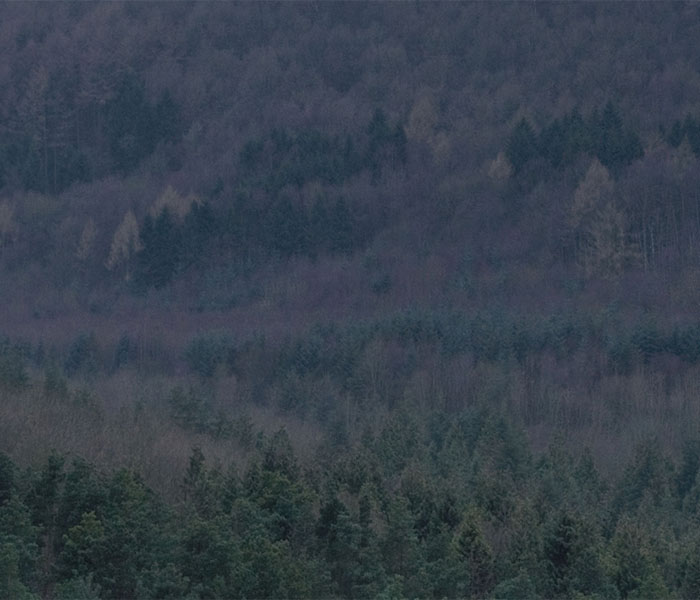
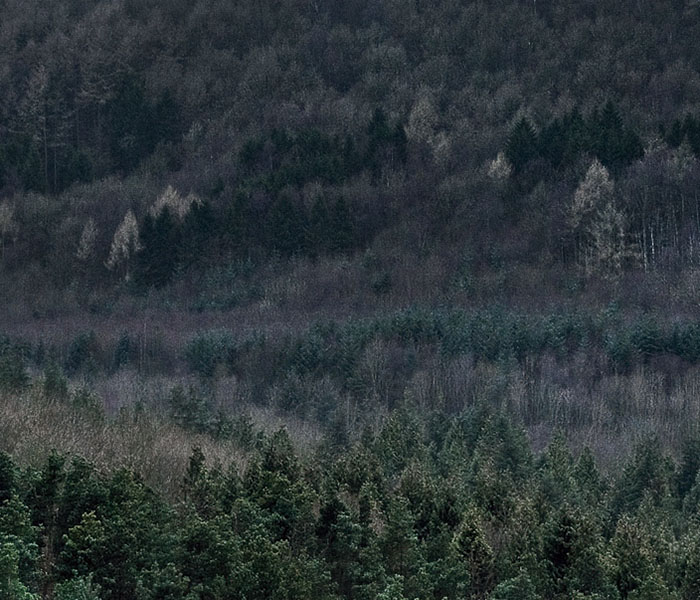
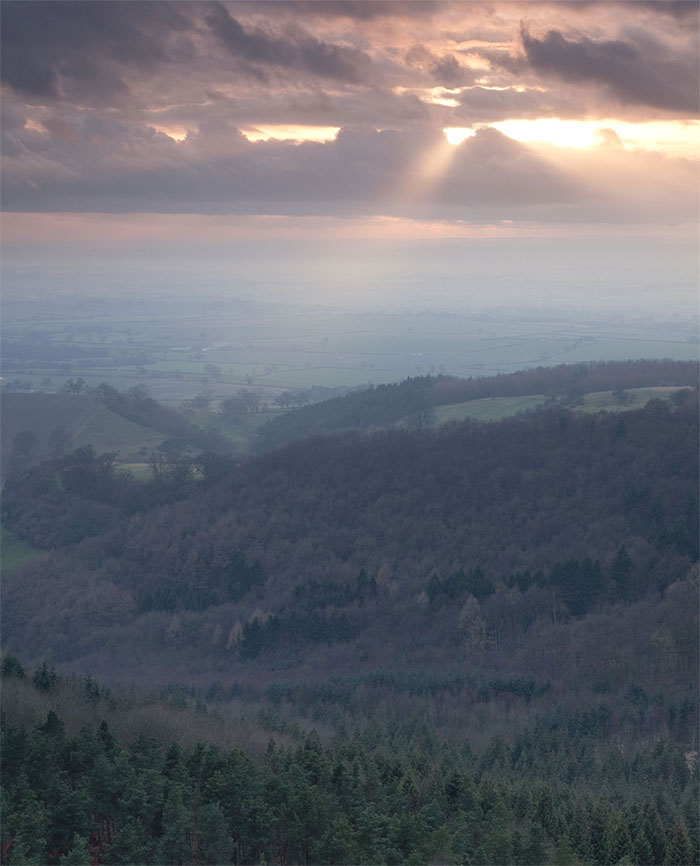
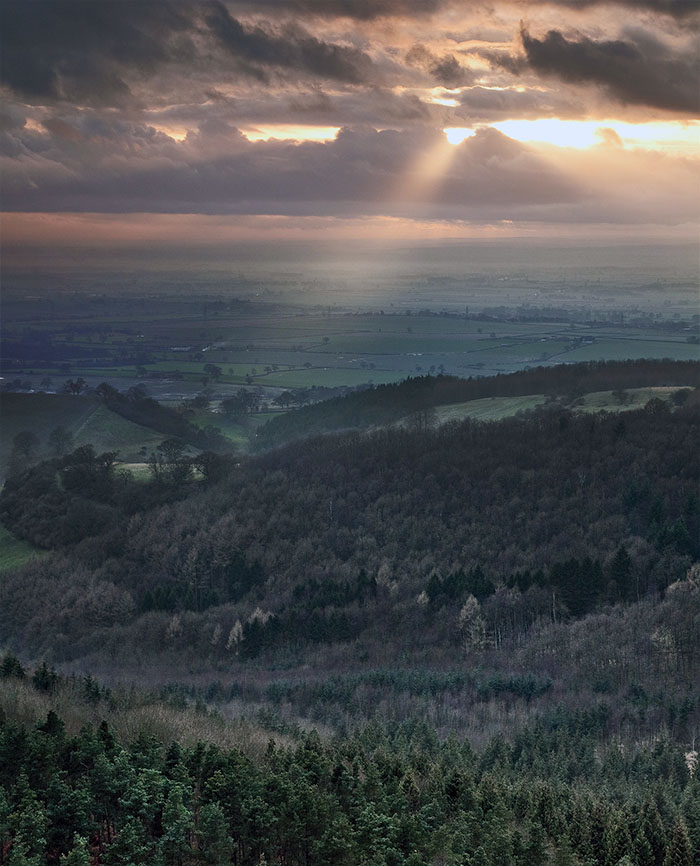
I’m looking at post processing photographs with haze or mist today at the request of Kostas Petrakis. The picture above isn’t particularly great but it’s as extreme an example as I could find for use in demonstrating my techniques. The picture below shows the whole picture followed by a sample from the mid-ground where you can use a slider to see the before and after shots.
before
after
before
after

In the video I’ll be using techniques such as local contrast enhancement, shadow highlight, colour balance and component curves and finally an interesting trick with unsharp mask. I’ll be going into how each of these techniques work (in possibly a little to much detail but you can skip ahead because of our new streaming video server).

This text is available for purchase but you need to login or register first

18 Responses

  1. Bruce Cairns

    Great stuff Tim, thanks. However, I’m all geeked out now and need a drink! But I have learned an awful lot. These videos are really helpful, and the technology is working well.

    • Ta Bruce – the videos are not too long I hope? Perhaps I should ‘chapterise’ them..

  2. Glad you got the video server sorted, Tim – it seems to be working well.

    Some great tips in the tutorial – I’ve been using the unsharp mask one for quite a while. It’s the most unlikely of uses for the tool, but it pays to play around every now and again.

    • It definitely works. The only possibly downside of the unsharp mask is that if you have a file that has a full range of tones (i.e. some tones at 100% and some at 0%) then you can easily clip the file in places with USM. It’s sometimes a good idea to use the levels tool to pull the highest highlights and the darkest shadows in so that you maybe have 5% as the darkest black and 95% as the brightest – then make your USM, then use levels or curves to bring the histogram back.

  3. Great video Tim. I have been using the shadow/highlight in a similar way like this before, but learned a lot more about it with this video. Lot’s of very good tips. Thanks for putting the video together.

  4. Really useful tutorial Tim, certainly one that I’ll keep referring back to. Is the new video format also available as a download, in the past I kept a copy on my MacBook for when I was on the train (I hope you don’t mind), the Wi-Fi connection on East Coast trains is sketchy at the best of times.

    • I’ll be including the downloads again asap – just need to work out how to do it on the new video server.

  5. JohnParminter

    Interesting video Tim, you have used tools I never knew existed, I really should learn a few more techniques other than basic levels adjustments.
    In the past I have delete low contrast and hazy files as I haven’t been able to process them effectively and I have picked up a few tips here.

    • Thanks John – I’m hoping to start adding videos on individual features of photoshop soon. If you have any particular ones you would like to see, just let me know

  6. Rhysd

    Thanks for the video Tim – I’ve spent a small fortune over the years buying PS plugins (Nik software, Topaz Labs, Imagenomic etc, etc) just to do the things you are doing from within PS itself. Even if I still use the aftermarket plugins it’s great to know the “theory” behind what they are doing as I assume that, for the most part, the plugins just perform the same PS actions?

    • I think most things can be done in photoshop directly but I do use the occasional plugin – My favourites are Photokit Sharpener (which is a bugger to get right by hand) and Imagenomic Noise Reduction which is astonishingly good.

  7. Rob

    Great Tim – your explanations of what photoshop is up to are really helpful. I’ve never really used the shadow highlight tool before as I’ve not been sure what its actually doing.

  8. EliPascall-Willis

    Very interesting video Tim. I’ve used all of the tools that you’ve shown, however, not with the same amount of control that you did, by using selective layer masks, which, is clearly very effective. The detail you managed to bring out really brings the image alive.
    One question – Is your preference to do your main amount of work with the control of selective layer masks in Photoshop, which, Raw converters seem to be fairly limited on. Or do you try to make as many adjustments as possible at the Raw file stage and continue in Photoshop if necessary?

    • I tend to make some broad changes in the raw converter – get the levels looking right, apply colour temperature adjustments and a small amount of noise reducgtion if necessary – and then do the bulk of the work in photoshop. I find the fine control that photoshop gives very useful (plus I know it’s preview is a lot more accurate than some software’s – I’m looking at you capture one).

      • EliPascall-Willis

        I’ve used both Capture one and Lightroom and have also noticed preview accuracy issues.
        I was recently over at the Roaches and there is part of the background in one of the images I made which, with some fine tuning curves control, will certainly bring out a small amount detail that was more apparent at the time. Thanks

  9. rushmeselector

    Very useful, learnt a great deal. Many thanks!

    Mark

  10. Only just watched this, a little bit behind.

    Have used the USM tool to bring some contrast in B&W before, but never thought of using the way you have.

    Learnt quite a lot here Tim, so thank you.

Notify me of followup comments via e-mail. You can also subscribe without commenting.